Film with your song playing
Use the same recording for every take. Let the camera microphone capture the playback so the audio can help identify where each performance belongs.
Align your performance videos to one master song before editing. Compare takes at the same point in the music, mix in B-roll and create different versions from the footage you already have.
Start with your song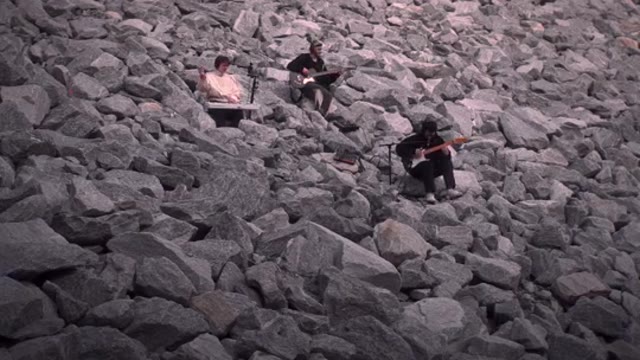
Use the same recording for every take. Let the camera microphone capture the playback so the audio can help identify where each performance belongs.
Upload the master song, then your performance footage. Chorus Cuts analyzes the reference audio to align takes to the song. B-roll is handled separately.
Review a clear mouth movement or drum hit near the start and later in each take. Choose your section and generate a batch once the alignment looks right.
Each performance maps back to the same song timeline. That makes it possible to compare angles at the same musical moment and cut between them while keeping your master audio continuous. A partial take only covers the part of the song that was recorded.
Clear playback in the camera recording helps automatic alignment. If a take has no usable reference audio, has been sped up, or uses a different mix of the track, inspect the result carefully and adjust alignment as needed. Automatic sync is not a guarantee that every recording will match.
B-roll does not need to match a sung performance. Use it for atmosphere and transitions, while the synced takes keep the performance connected to the song. Your cutting rhythm, grades and lyric styles can vary between versions.
No. Phone footage can work. Focus on a stable recording, useful framing and audible song playback in each performance take.
Yes. Mark footage appropriately: performance takes need to line up with the master track, while B-roll follows the rhythm of the edit.
Select a section that your footage covers. A partial take does not contain performance footage for the rest of the song.